Git and GitHub Essentials

I am an Associate Platform Engineer with 2.4 years of experience in IT, specializing in Linux administration, Cloud, and Big Data. With a strong focus on managing Linux servers and Cloudera Applications. My skill set includes a basic understanding of AWS Cloud services such as EC2, IAM, VPC, as well as DevOps tools like Ansible, Git, Jenkins, Docker, Kubernetes, and Containers.
Certifications: Red Hat Certified System Administrator | Red Hat Certified Engineer | Red Hat Certified Specialist in Ansible Automation (EX-407) | Certified Kubernetes Administrator (Certification ID: LF-pe1lwgmff0)
Hello there! Welcome to this interactive blog where we'll explore about Git and GitHub.
What is Git? 🐙
Git is a version control system that allows you to track changes to files and coordinate work on those files among multiple people. It is commonly used for software development, but it can be used to track changes to any set of files.
With Git, you can keep a record of who made changes to what part of a file, and you can revert back to earlier versions of the file if needed. Git also makes it easy to collaborate with others, as you can share changes and merge the changes made by different people into a single version of a file.
What is GitHub? 🐱💻
GitHub is a web-based platform that provides hosting for version control using Git. It is a subsidiary of Microsoft, and it offers all of the distributed version control and source code management (SCM) functionality of Git as well as adding its own features. GitHub is a very popular platform for developers to share and collaborate on projects, and it is also used for hosting open-source projects.
Why Use Version Control? 🔄
Imagine you're working on a project, and things go haywire! You accidentally break something, and it's hard to pinpoint what went wrong. Version control to the rescue! With version control, you can:
Revert to a previous stable version 🔄 Compare changes over time 👀 See who made specific changes 🔍 Collaborate with others without chaos 🤝
Centralized vs. Distributed Version Control 🏢🌐
Centralized Version Control (CVCS): 🏢
Files are stored on a central server.
Developers check out and check in changes.
Examples: Subversion, Perforce.
Distributed Version Control (DVCS): 🌐
Everyone has a complete copy of the project's history.
Developers can work independently and merge changes later.
Examples: Git, Mercurial, Darcs.
Why Choose Distributed Version Control (DVCS)?
Better Collaboration: 🤝 Everyone has a full copy of the repository! No constant back-and-forth with a central server to share updates. We can all work together seamlessly!
Improved Speed: ⚡ Since we all have a local copy, actions like commits and comparisons happen way faster! No waiting for the central server.
Greater Flexibility: 🧘 We can work offline and commit changes later when we have an internet connection. Plus, we can share our changes with select teammates! Control, yay!
Enhanced Security: 🔒 With the repository stored on multiple servers and computers, we're safer from data loss. Goodbye, worries!
Configuring Git in Linux
As mentioned earlier, Git uses a repository as its base storage location. A repository or repo can be local or remote. With local repositories, project files reside on a local machine or server whereas, with remote repositories, project files reside on a remote machine or server.
Now we know what are Git and GitHub. In this article, we are using GitHub for hosting the various Git repositories you will be creating, updating, and tracking.
Create a GitHub Account
Create a GitHub account if you do not have one.
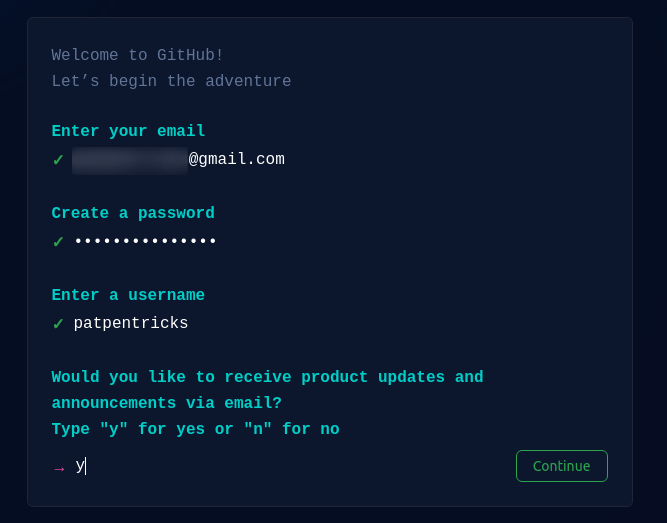
Create Github Account
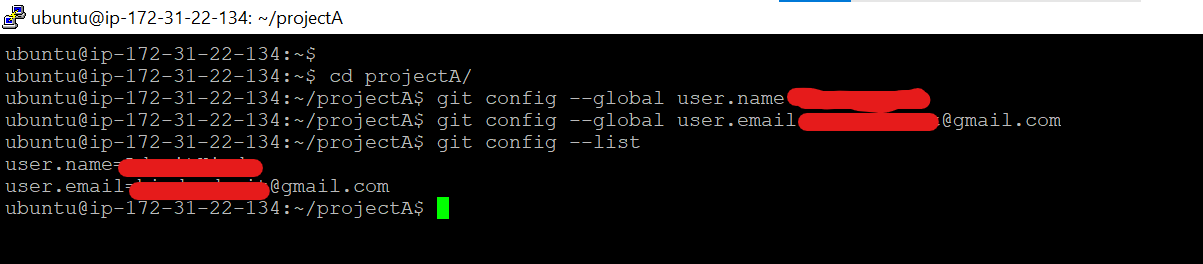
For first time use, you will need the username and email of your GitHub account to configure a global variable that will inform the GitHub cloud service that it is you making changes to your project repo each time you need to upload a file, remove a file, or update a file.
From your Linux terminal, do the following:
$ git config --global user.name "Your GitHub Username"
$ git config --global user.email "Your GitHub Email"
We can re-check or confirm the configurations we made with this git command.
$ git config --list
Setting up Git Repositories
Since a repository holds all your project files and directories, making changes to these files and directories is through commits. It is through commits that we are able to execute repository changes whether we want to revert a change or proceed with new changes.
Create a directory on your local machine that will be holding your projects.
$ mkdir projectA
$ cd projectA
Initialize git inside this directory.
$ git init
The above command tells Git to start tracking all changes inside the projectA directory when you are adding or removing something.
Next, let us create a random file with some text:
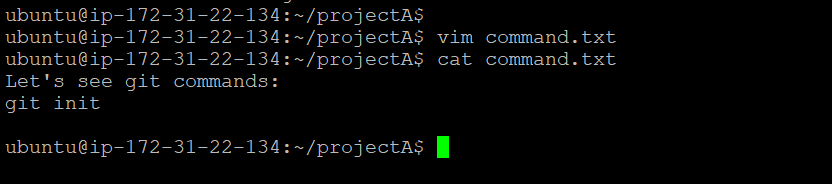
Add this file to git.
$ git add linuxshelltips.txt
If you have many files inside your repo directory and you want to add them all, use the command:
$ git add .
Next, commit the file(s). Your file commits should be associated with a message so that you know exactly what you did to that file when you later revise the project repository.
$ git commit -m "My first commit"

If you want to display the state of the working directory and the staging area, use the git status command. It lets you see which changes have been staged, which haven't, and which files aren't being tracked by Git.

If you want to ignore committing some files or directories, create a .gitignore file, and inside it, specify the files and directories it should ignore.
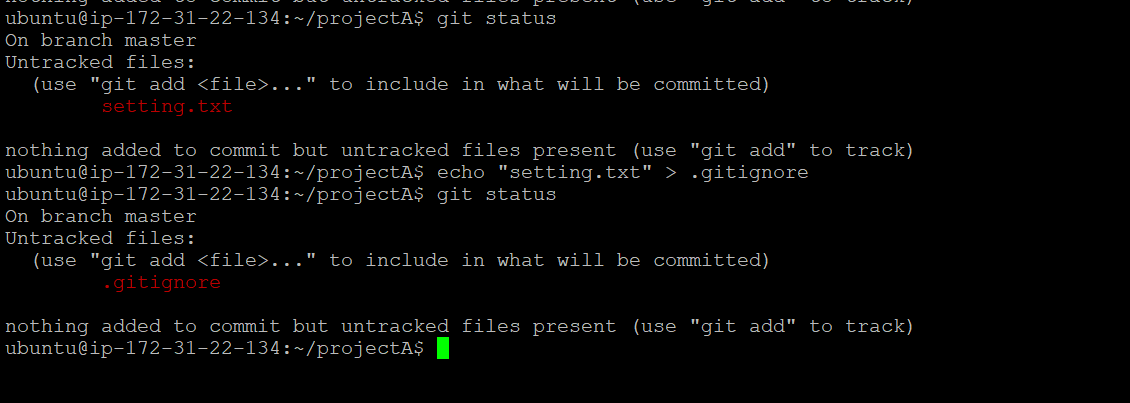
Git will not add and commit anything specified in this file.
git log – Show the Commit History
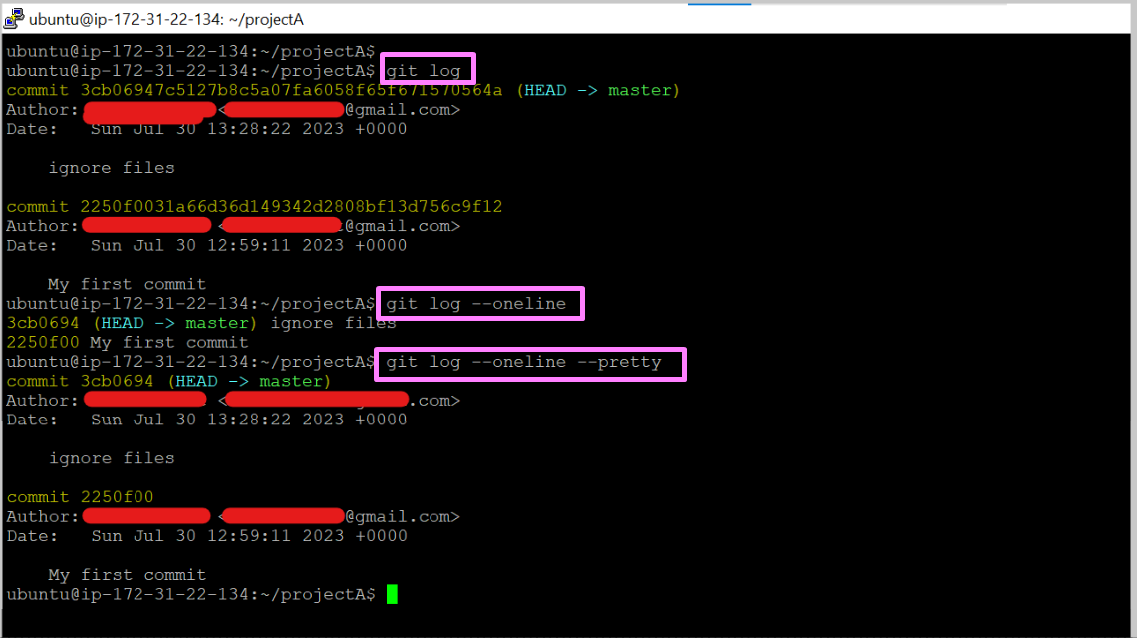
The git log command displays the git repository’s history. It provides the git user with a preview of implemented repository changes. Such changes include commit changes, author, and date. If you want to see the logs in an one line then you can use the --oneline parameter.
Show Commits History
For the commit history of the current active branch:
$ git log
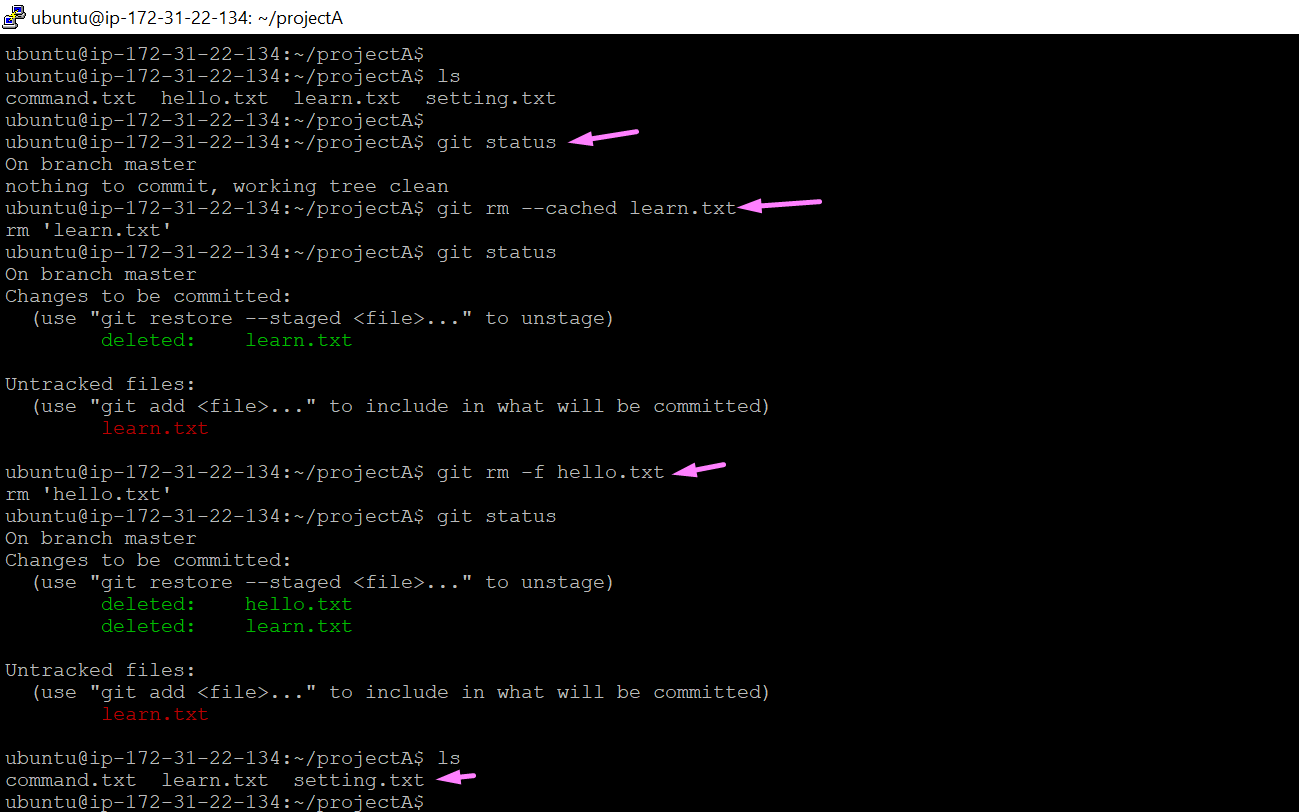
git rm : The git rm command removes specific files or a group of files from a Git repository. The main function of git rm is removing tracked files from the index. "--cached" use this option to unstage and remove paths only from the index. Working tree files, whether modified or not, will be left alone. -f or "--force" is used to Override the up-to-date check.
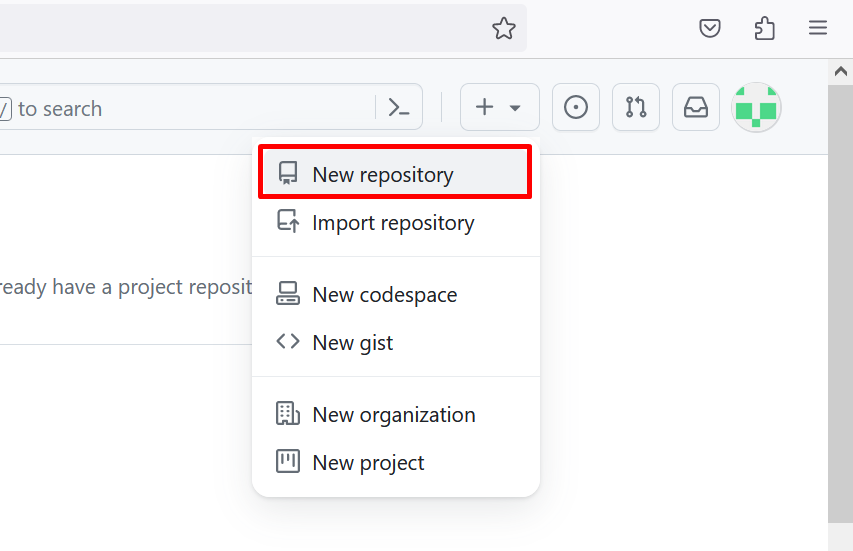
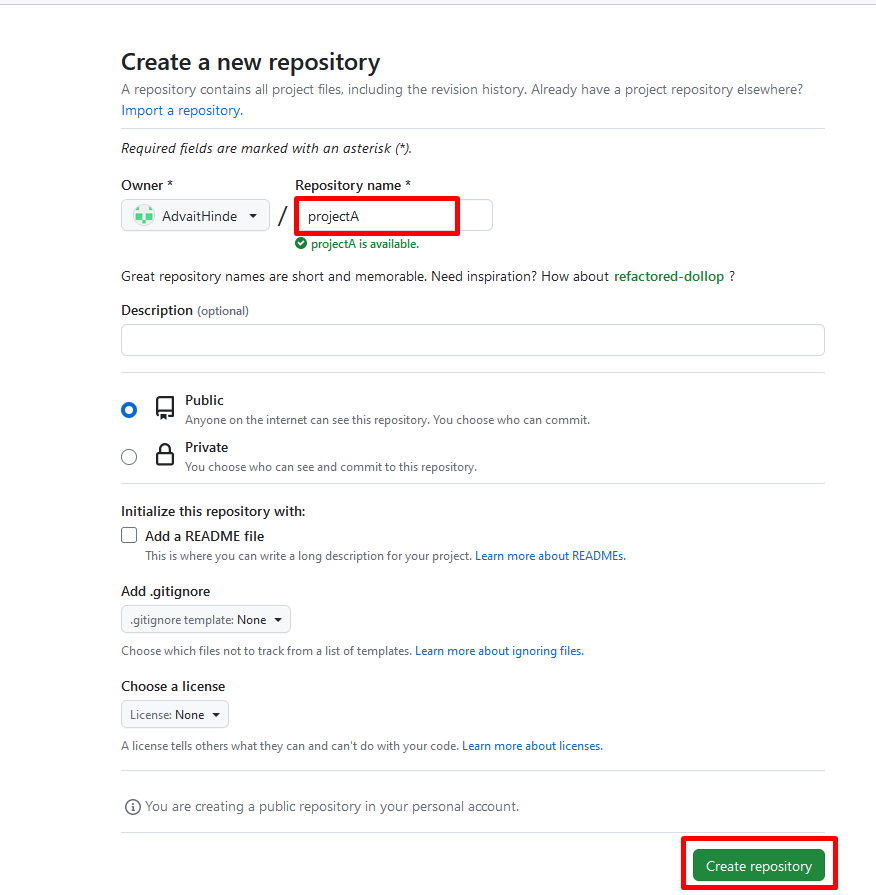
Create a Remote Repo on GitHub
Create a remote repo on GitHub that will receive our local repo files.
Add the origin of this created remote repo to sync with your local repo.
$ git remote add origin https://github.com/[YOUR_GITHUB_USERNAME]/projectA.git
You will run into the following authentication error trying to push your first repo to GitHub.

Since GitHub no longer supports password authentication from the command line, we will need to use a token in place of a password. Follow these screen captures from your GitHub account to set up your authentication token.
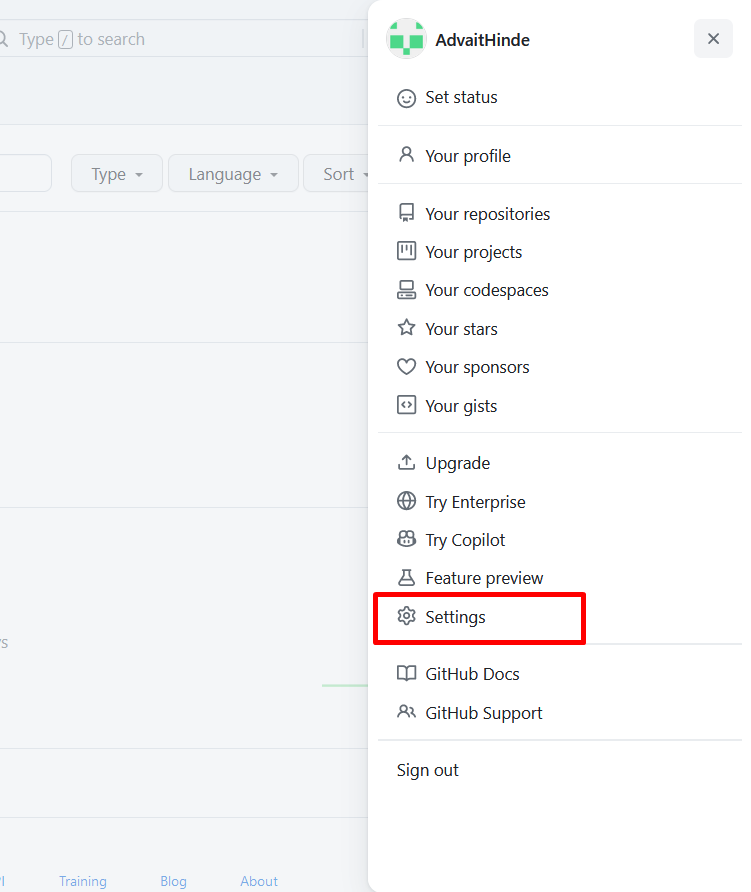
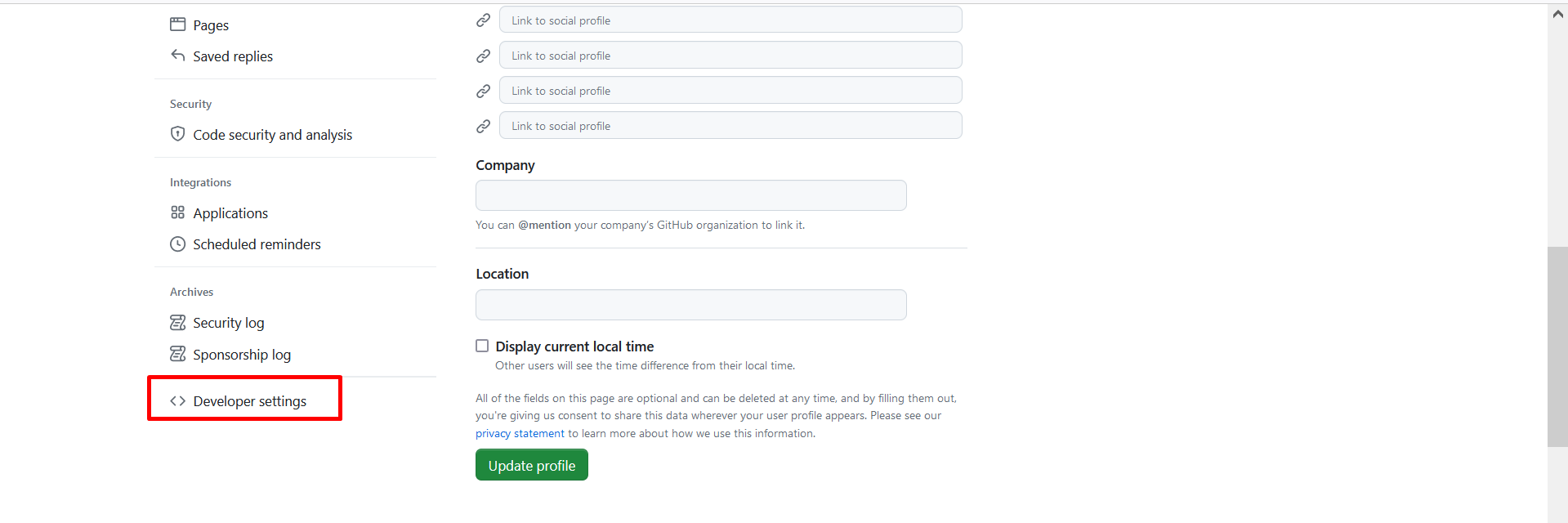
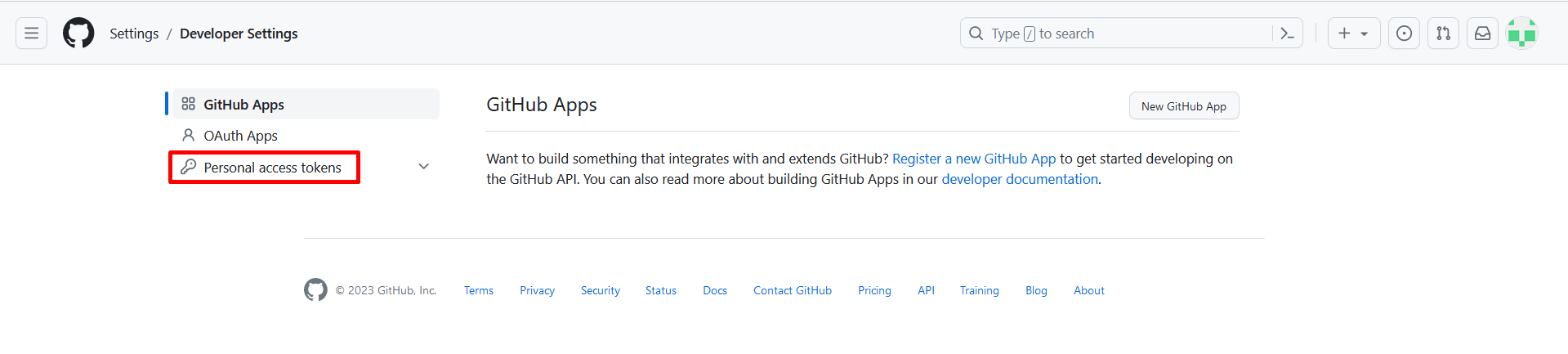
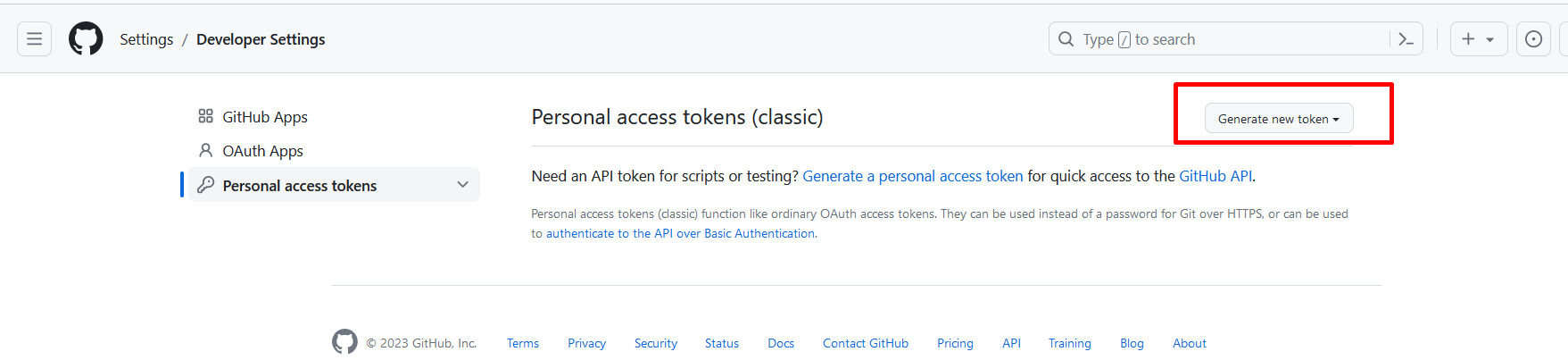
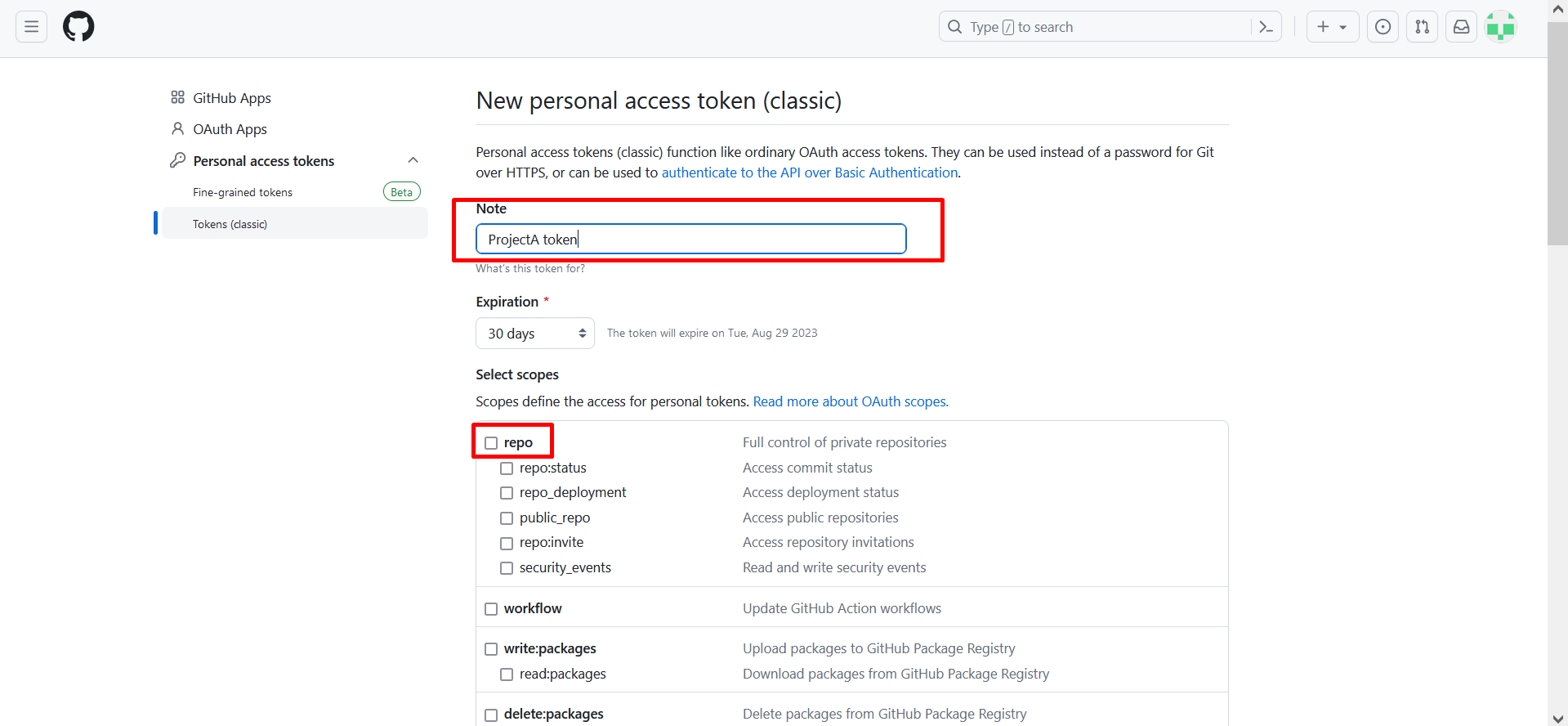
Add the personal access info and choose the scopes in GitHub and click on Generate Token.
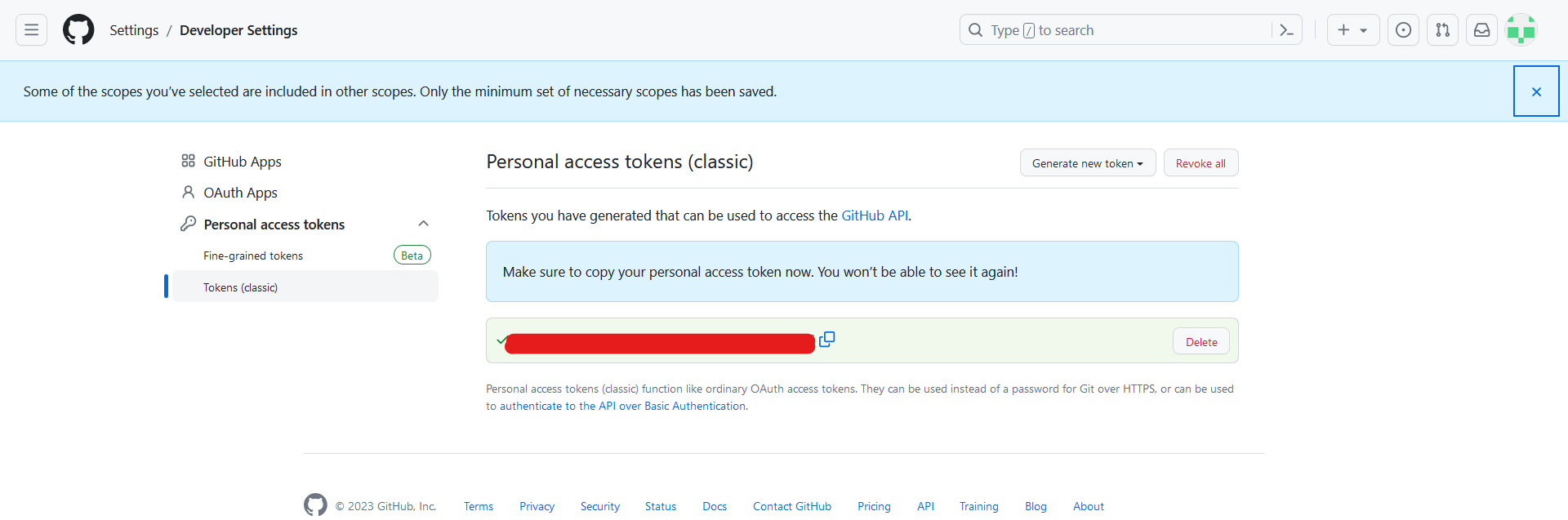
Personal Access token generated. Now let's try to push the repo again. When prompted for a password, remember to use the token key you generated earlier or you can use the git remote command and then push the changes to remote repo.
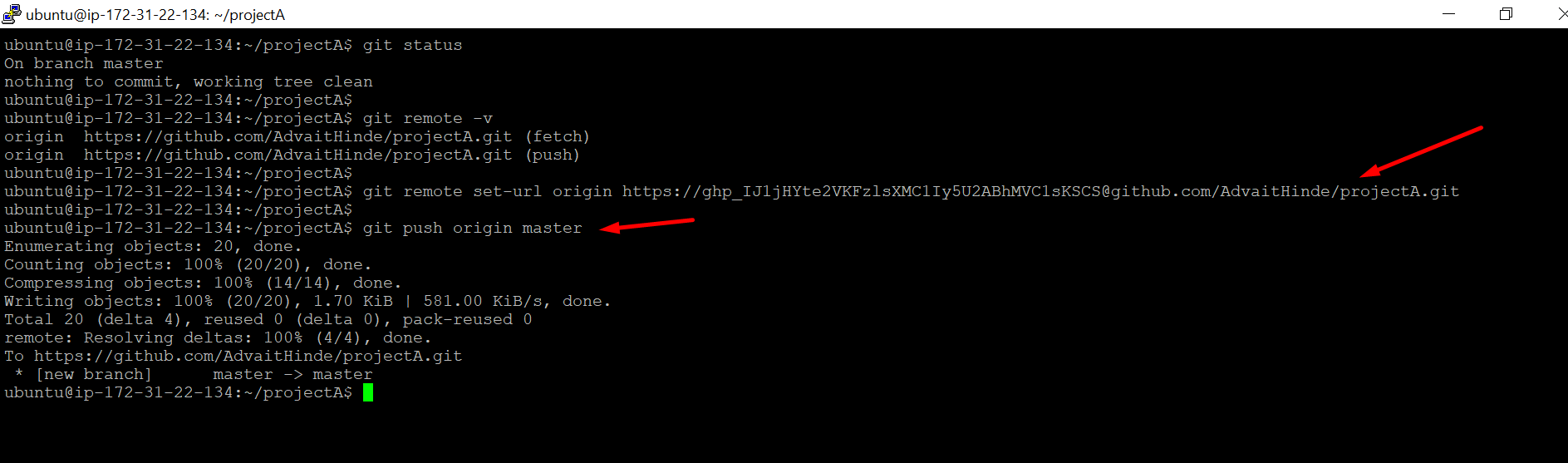
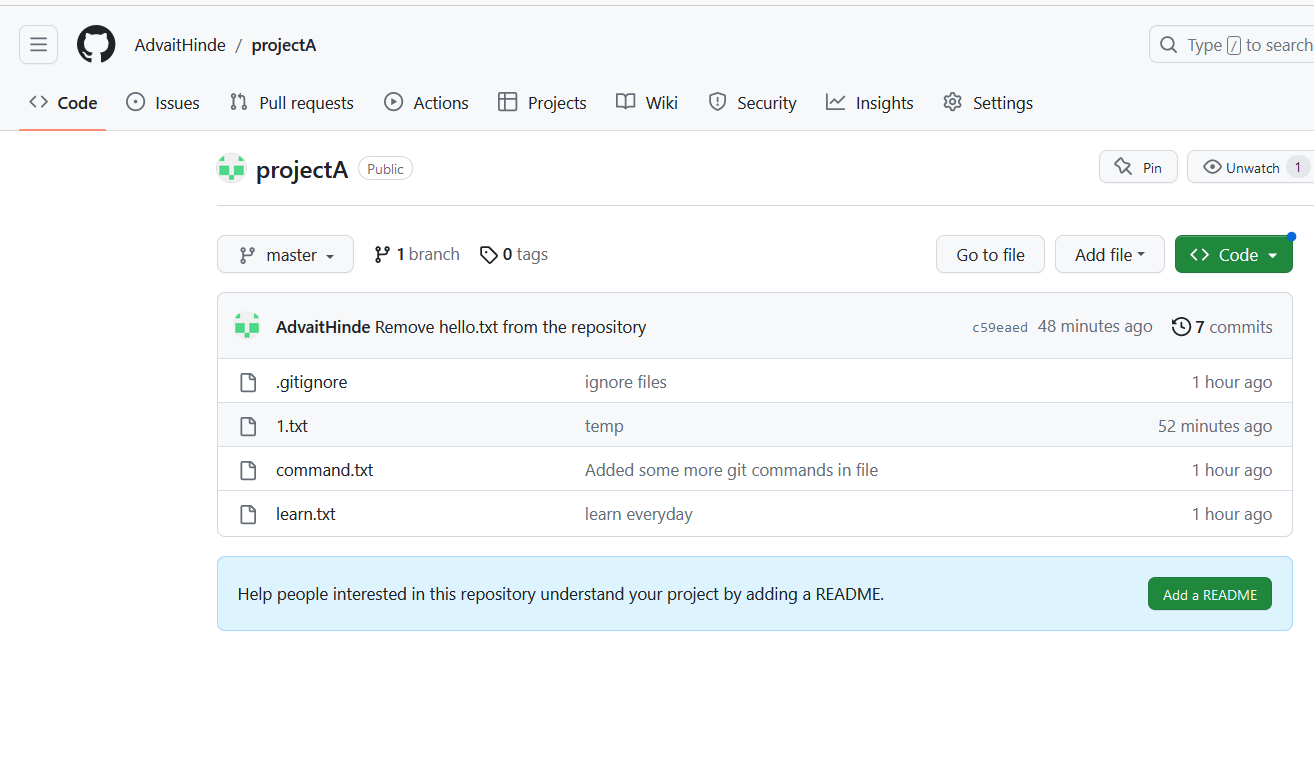
Our file should have been successfully pushed to GitHub.
Conclusion:
In this blog, we've delved into the world of Git and GitHub, two essential tools for version control and collaborative development. Git enables us to track changes, collaborate seamlessly, and revert back to previous versions, while GitHub provides a powerful platform for hosting repositories and sharing projects. By understanding distributed version control, configuring Git, and setting up repositories on GitHub, you are now equipped to make the most of these tools in your software development journey. Happy coding and collaborating!


